reMarkable Paper Pro Review for Creators

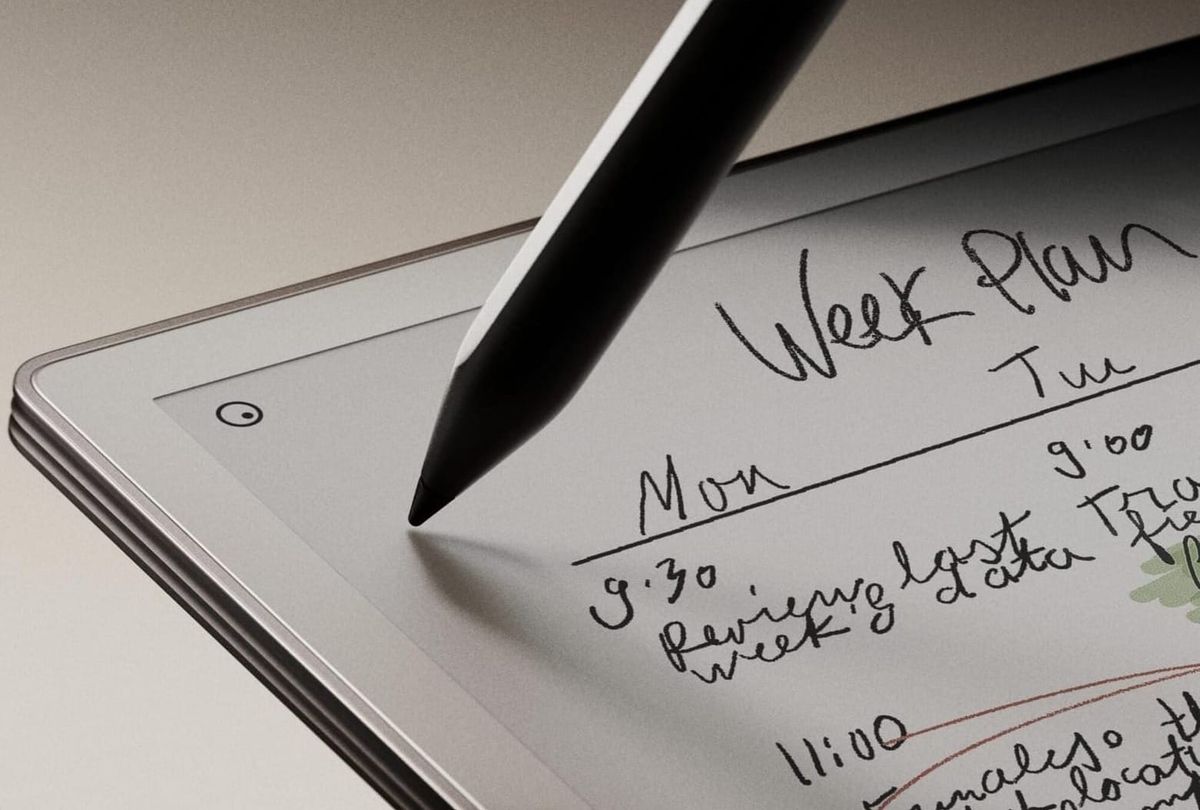
A practical reMarkable Paper Pro review for creators, writers, newsletter operators, content planners and digital note-takers, covering what it does well, where it falls short, whether it can replace an iPad or laptop, and who should actually buy it.
Last updated: 25 April 2026
The reMarkable Paper Pro is not trying to be an iPad. That is the point.
It is a premium colour paper tablet built for writing, reading, annotating, planning and thinking without the usual noise of a normal tablet. There is no TikTok app, no YouTube rabbit hole, no browser-first workflow and no stream of notifications pulling you away from the thing you opened it to do. For some creators, that makes it expensive and limited. For others, that limitation is exactly why it works.
The direct answer: the reMarkable Paper Pro is worth considering if you are a creator who writes, plans, scripts, annotates, researches, outlines videos, reviews PDFs or wants a serious digital notebook that feels closer to paper than a tablet. It is not the best choice if you want video editing, Canva-heavy design, social scheduling, full apps, browsing, spreadsheets or a device that can replace your laptop.
That difference matters. A creator buying the reMarkable Paper Pro for focused writing may love it. A creator buying it because they think it will become a full productivity tablet may be disappointed. reMarkable describes the Paper Pro as an 11.8-inch colour paper tablet with an adjustable reading light and paper-like writing feel, while TechRadar called it “aggressively simple” and “distraction-free”. That is the whole buying decision in one sentence: do you want more tablet features, or fewer distractions?
This review breaks down whether the reMarkable Paper Pro makes sense for creators, how it compares with an iPad, Kindle Scribe, Surface or normal notebook, and whether it belongs in a creator tech stack.
Disclosure: Some links in this article may be affiliate links. If you buy through them, The Creator Insider may earn a commission at no extra cost to you. We only include products where they are relevant to the creator workflow being discussed.
What is the reMarkable Paper Pro?
The reMarkable Paper Pro is a premium digital paper tablet designed for handwriting, reading, annotating and distraction-free work. It has an 11.8-inch Canvas Color display, an adjustable reading light, paper-like screen texture, stylus support and a minimalist operating system built around notebooks, documents, folders and writing tools.
In short: it is a digital notebook for creators who want focus, not a tablet for creators who want apps.
The Paper Pro is the more advanced model above the reMarkable 2. The biggest upgrades are colour, a larger display and a built-in reading light. reMarkable’s official comparison page lists an 11.8-inch display, 2160 x 1620 resolution, 229 PPI, Canvas Color technology and 20,000 colours. Currys UK also lists 64GB storage, 2GB RAM, a 1.8GHz quad-core Cortex-A53 processor, USB-C and up to 14 days of in-use battery life on its Paper Pro bundle pages.
Those specs are not the reason to buy it. You do not buy a reMarkable because it has more power than an iPad. It does not. You buy it because the writing experience, focus and notebook structure make it easier to think clearly.
| Feature | What it means for creators | Creator verdict |
|---|---|---|
| 11.8-inch Canvas Color display | More space for notes, briefs, outlines, scripts, PDFs and visual planning. | Strong for writers, strategists and planners. |
| Colour E Ink | Useful for highlights, edits, mind maps, annotations and content planning. | Helpful, but not the same as iPad colour. |
| Adjustable reading light | Makes it usable in lower-light settings. | A major upgrade over reMarkable 2. |
| Paper-like writing feel | Better for people who think through handwriting. | The main reason to buy it. |
| Minimal app ecosystem | No normal tablet distractions, but also no full creator apps. | Brilliant or frustrating, depending on workflow. |
Is the reMarkable Paper Pro worth it for creators?
The reMarkable Paper Pro is worth it for creators who do a lot of writing, planning, research, scripting, note-taking, PDF review or long-form thinking. It is not worth it for creators who mainly need video editing, social scheduling, graphic design, analytics dashboards, email, browser tools or a laptop replacement.
In short: buy it for focus and writing. Do not buy it for general productivity.
For creators, the biggest benefit is not colour. It is the way the device removes decisions. You open it, write, read, annotate or plan. That sounds basic, but it can be powerful if your day is already split between social platforms, analytics tools, emails, brand messages, content calendars and browser tabs.
This is why the Paper Pro makes the most sense for creators who need a thinking device. A newsletter writer can outline articles. A YouTuber can script videos. A creator strategist can map content pillars. A UGC creator can review briefs and shot lists. An affiliate site owner can annotate product research. A coach, consultant or educator can take client notes without opening a laptop.
Where it falls down is execution work. It is not where you edit Reels, build Canva graphics, manage spreadsheets, run a Notion database heavily, send invoices or schedule content. It can support the creator business, but it should not be mistaken for the whole creator business system.
For the wider creator setup, read The Creator Tech Stack.
How much does the reMarkable Paper Pro cost?
The reMarkable Paper Pro is expensive, and the real cost depends on the bundle. reMarkable’s official site currently shows the Paper Pro from $629 with Marker included. UK review pricing has commonly sat around £559 to £599 for the tablet and marker, while bundles with folios or Type Folio can push the total much higher.
In short: the Paper Pro is not a cheap notebook replacement. It is a premium focus device, and the accessories matter.
reMarkable’s official product page lists the Paper Pro from $629. TechRadar reported launch pricing from $579 / £559 / AU$929 with Marker, while T3’s review noted UK pricing from £559 and showed a live checked price of £599. Currys UK listed a Paper Pro with Marker Plus and Book Folio Pro bundle at £699 at the time its product page was captured.
The important point for creators is that the base price is rarely the full decision. You may also want the Marker Plus, a Book Folio, the Type Folio keyboard and potentially a Connect subscription. reMarkable’s Connect pricing page lists a 50-day free trial, then $3.99 per month, with extra cloud and editing features.
If you are buying this as a business tool, compare the full setup cost against what it actually helps you do. If it helps you write better scripts, plan more consistently, review briefs faster or stop losing handwritten notes, it may justify the cost. If it will mostly sit next to your laptop while you still plan in Notion and edit on your phone, it may be an expensive aesthetic purchase.
Who should buy the reMarkable Paper Pro?
The reMarkable Paper Pro is best for creators who think through handwriting, work with notes or documents, need fewer digital distractions and want a dedicated place for scripts, outlines, research, planning and annotations. It is especially useful for writers, educators, consultants, newsletter creators, strategists and creators building long-form content systems.
In short: it suits creators whose bottleneck is thinking, not editing.
| Creator type | Why it fits | Best use case |
|---|---|---|
| Newsletter writers | Good for outlining, drafting ideas, reading research and annotating notes. | Article outlines, issue planning and source review. |
| YouTubers | Useful for scripts, video structures, research notes and shoot planning. | Script drafts, thumbnail ideas and talking-point maps. |
| UGC creators | Useful for reviewing briefs, shot lists, concepts and campaign notes. | Brand brief annotation and shoot planning. |
| Affiliate creators | Good for product research, comparison notes and buying-guide planning. | Pros and cons lists, product tables and content outlines. |
| Consultant-creators | Useful for calls, client notes, workshops and frameworks. | Meeting notes and idea mapping. |
| Students or course creators | Good for reading, annotating PDFs and organising learning materials. | Course notes, lesson planning and module outlines. |
The Paper Pro is at its best when it replaces messy paper, scattered notebooks and distracted laptop planning. It is less convincing when creators expect it to replace a laptop, tablet, editing machine or content management system.
For planning-heavy workflows, read Best Content Planning Tools for Creators.
Who should not buy the reMarkable Paper Pro?
Creators should not buy the reMarkable Paper Pro if they mainly need a tablet for apps, video editing, social posting, Canva, browser tools, spreadsheets, dashboards, email or full business admin. It is also hard to justify for creators who do not already take notes, write drafts, mark up documents or plan by hand.
In short: if you do not already have a writing or note-taking habit, the Paper Pro may not create one for you.
This is the buying trap. The Paper Pro looks like the kind of device that will make you more thoughtful, organised and productive. But no device can do that if your actual problem is unclear goals, weak content ideas, inconsistent posting or poor workflow discipline.
If your creator work is mostly filming, editing and posting, an iPad Air, MacBook Air or even a better phone setup may be a stronger purchase. If your work is written and planning-heavy, the Paper Pro becomes more relevant. If your work sits somewhere in between, be honest about which device you will actually reach for every day.
For a broader tablet comparison, read Best Tablets for Creators in 2026.
Is the reMarkable Paper Pro better than an iPad?
The reMarkable Paper Pro is better than an iPad for focused handwriting, distraction-free note-taking, PDF annotation and paper-like planning. The iPad is better for apps, colour design, video editing, social content, browsing, email, Canva, Notion, multitasking and creator business admin. They solve different problems.
In short: Paper Pro is the better notebook. iPad is the better tablet.
This is the comparison that matters most for creators. If you want one device that can plan, edit, design, post, email, browse and run apps, buy an iPad. If you want a device that removes most of those options so you can think and write, consider the reMarkable Paper Pro.
| Device | Best for creators who need... | Main trade-off |
|---|---|---|
| reMarkable Paper Pro | Writing, notes, planning, PDF annotation and focus. | Limited apps and expensive for a single-purpose device. |
| iPad Air | Planning, Canva, editing, apps, notes, light design and social workflows. | More distracting and less paper-like. |
| Kindle Scribe | Reading-first users who also want handwritten notes. | Less creator-workflow focused than reMarkable. |
| Microsoft Surface Pro | Windows apps, desktop browser workflows, spreadsheets and business admin. | Less paper-like and more laptop-like. |
If you already own an iPad and use it well, the Paper Pro only makes sense if you specifically want a separate distraction-free writing device. If your iPad is already where you plan, write, sketch, edit and manage the business, adding a Paper Pro may create another device to maintain rather than a genuine workflow improvement.
For iPad-specific buying advice, read iPad for Content Creators.
What is the writing experience like?
The writing experience is the main reason to buy the reMarkable Paper Pro. Reviews consistently highlight its paper-like feel, low-distraction interface and strong note-taking experience. The colour display adds useful highlighting and annotation options, but the core appeal is still handwriting on a screen that does not feel like a normal glass tablet.
In short: the Paper Pro is expensive because it makes digital writing feel unusually natural.
WIRED said the Paper Pro’s colour E Ink screen, front light and active stylus make the experience feel closer to writing with pen and paper. The review also noted that the larger 11.8-inch screen feels closer to A4 paper, which matters if you write larger notes, mark up PDFs or want a more spacious planning surface.
The writing experience is not only about latency. It is about friction in a good way. The textured screen and stylus feel more deliberate than tapping on glass. For creators who think through writing, that can change how often they capture ideas, structure thoughts and review drafts.
The colour implementation is useful, but it should not be confused with iPad colour. WIRED described the colours as muted, closer to coloured pencils than vibrant pens. That is not necessarily bad. For notes, highlights and planning, subtle colour is often enough. For design, illustration or polished visual work, an iPad is still the better choice.
Is the reMarkable Paper Pro good for content planning?
Yes, the reMarkable Paper Pro is excellent for content planning if your planning style involves handwriting, outlining, mind mapping, reviewing briefs, annotating research or structuring ideas away from a laptop. It is less useful if your content planning depends on heavy Notion databases, spreadsheets, social schedulers or browser-based tools.
In short: it is best for thinking through content, not managing every moving part of the content machine.
A creator could use the Paper Pro to plan weekly content pillars, sketch a YouTube structure, build a newsletter outline, mark up a brand brief, plan a TikTok series or organise affiliate article notes. The large screen helps because you can fit more structure on one page than you can on a smaller e-reader style device.
The limitation is integration. You may still need to move ideas into Notion, Google Docs, Trello, ClickUp, WordPress, Ghost or your scheduling tool. That handoff is not always a problem. In fact, separating thinking from publishing can be helpful. But if you want one system that does everything, the Paper Pro is not that system.
For planning systems, read Notion for Creators and Best Productivity Apps for Creators in 2026.
Is the reMarkable Paper Pro good for writers and newsletter creators?
The reMarkable Paper Pro is especially good for writers and newsletter creators who like drafting, outlining and editing away from a laptop. It is useful for idea capture, long-form outlines, handwritten drafts, reading research, annotating PDFs and building issue structures before moving into a publishing tool.
In short: it is one of the strongest creator devices for people whose work starts with words.
Writers often need two different modes: thinking and production. The laptop is good for production. It is where you edit, format, publish, check sources and manage links. But it is also where email, analytics, Slack, browser tabs and social platforms compete for attention. The Paper Pro gives writers a cleaner place to think before the laptop stage.
The Type Folio makes the device more interesting for writers who want typed drafts. reMarkable says the Type Folio needs no pairing or charging, while WIRED praised it but noted that third-party keyboards are not supported. That makes it useful, but also expensive and locked into reMarkable’s accessory ecosystem.
For long-form creators, the best setup may be Paper Pro for thinking, laptop for publishing. Trying to make the Paper Pro the whole writing business may be too restrictive.
What are the biggest limitations?
The biggest limitations are the price, lack of full app support, limited browsing, no normal tablet multitasking, accessory cost, subscription extras and the fact that colour E Ink is still muted compared with an iPad. The Paper Pro is built for focus, but that focus comes from removing features many creators may still need.
In short: the reMarkable Paper Pro is powerful because it does less, but that also makes it the wrong device for many creators.
WIRED noted that users need to be comfortable with the device’s simplicity because it cannot browse the web, is not a collaborative environment and is not a great substitute for a standard e-reader. TechRadar made a similar point, saying the Paper Pro is about wanting less and may frustrate people who expect something more robust.
The colour display is also not a creative tablet display. It is useful for notes and annotations, but creators should not buy it expecting bright iPad-style visuals. The front light is useful, but several reviews note that it is subtle rather than bright. That is fine for reading and writing, but it reinforces the point that this is not a general entertainment or visual production device.
The other limitation is workflow duplication. If you already use a laptop, iPad, phone, paper notebook, Notion and Google Docs, adding a Paper Pro can either simplify your thinking or add another place where notes get trapped. The difference depends on whether you build a clear workflow for it.
Should creators buy the reMarkable Paper Pro or Paper Pro Move?
Creators should choose the reMarkable Paper Pro if they want a larger writing surface for planning, PDFs, scripts and desk-based work. They should choose the Paper Pro Move if portability matters more than screen space. The Paper Pro is closer to a digital notebook desk companion; the Move is closer to a pocketable idea-capture device.
In short: choose Paper Pro for big-page thinking and Paper Pro Move for on-the-go notes.
reMarkable lists the Paper Pro Move with a 7.3-inch Canvas Color display, paper-like writing feel and up to two weeks of battery life. Its smaller size makes it more portable, but that also means less space for large notes, PDFs, scripts, planning maps and document review.
For most creators doing content planning, writing, research annotation or long-form outlines, the larger Paper Pro is likely the better fit. For creators who want something to carry everywhere for ideas, quick notes and meetings, the Move is more compelling. The right choice depends on where the device will actually be used.
What is the best creator workflow for reMarkable Paper Pro?
The best creator workflow is to use the reMarkable Paper Pro as a thinking layer, not the whole production system. Use it for notes, outlines, scripts, briefs, research and planning, then move finished ideas into your publishing, editing, project management or finance tools.
In short: let the Paper Pro help you think, then let your laptop help you ship.
A useful creator workflow could look like this: capture rough ideas on the Paper Pro, develop them into outlines, review research PDFs, annotate brand briefs, plan the content structure, then transfer the final direction into Notion, Google Docs, Ghost, WordPress, CapCut, Final Cut, Canva or your chosen planning system.
This avoids the biggest mistake: expecting the Paper Pro to become a full operating system. It is not that. It is a clean workspace before the messy work begins.
For creator operating systems, read The Creator Tech Stack.
Should creators buy the reMarkable Paper Pro?
Creators should buy the reMarkable Paper Pro if they already know they value handwriting, distraction-free planning, PDF annotation and focused thinking. They should skip it if they mainly need an app-based tablet, editing device, design tool, laptop replacement or cheaper note-taking option.
In short: the Paper Pro is a brilliant specialist device, not a sensible general-purpose tablet.
The strongest case for buying it is not that it does more. It is that it stops you doing everything else. For creators whose biggest problem is distraction, scattered ideas and poor planning focus, that can be valuable. For creators whose biggest problem is content production speed, app access or technical execution, there are better purchases.
The creator buying rule is simple: only buy the Paper Pro if you can name the exact workflow it will improve. “I want to look more organised” is not enough. “I will use it to outline two newsletters a week, annotate research, plan YouTube scripts and review brand briefs without opening my laptop” is a much stronger reason.
Frequently asked questions
Is the reMarkable Paper Pro good for creators?
Yes, the reMarkable Paper Pro is good for creators who write, plan, script, annotate, research or take handwritten notes. It is not ideal for creators who need video editing, design apps, social scheduling, dashboards or full tablet functionality.
Can the reMarkable Paper Pro replace an iPad?
No, not for most creators. The reMarkable Paper Pro is better for focused writing and note-taking, while the iPad is better for apps, editing, design, browsing, social workflows and general productivity.
Can the reMarkable Paper Pro replace a laptop?
No. It can support writing, planning and reviewing work, but it should not be treated as a laptop replacement. Most creators will still need a laptop for publishing, editing, finance, email, file management and business tools.
Is the reMarkable Paper Pro worth the money?
It is worth the money if you will use it regularly for focused writing, planning, PDF annotation or research. It is harder to justify if you only want a nice-looking productivity device or already use an iPad effectively.
What is the reMarkable Paper Pro best for?
It is best for handwritten notes, content outlines, scripts, research annotation, PDF review, meeting notes, planning maps, ideas, focused drafting and distraction-free thinking.
Does the reMarkable Paper Pro have colour?
Yes. It uses a Canvas Color display that reMarkable says can render 20,000 colours. The colour is useful for notes and highlights, but it is muted compared with an iPad or normal LCD/OLED display.
Does the reMarkable Paper Pro need a subscription?
No subscription is required for the basic built-in features, but reMarkable Connect adds extra cloud, template and editing features. reMarkable lists Connect at $3.99 per month after a 50-day free trial.
Is the Type Folio worth it?
The Type Folio is worth considering if you want to type drafts on the Paper Pro, but it is expensive and designed specifically for reMarkable. Writers may value it more than creators who only want handwritten notes.
Should I buy reMarkable Paper Pro or Paper Pro Move?
Buy the Paper Pro if you want a larger screen for scripts, PDFs, planning and desk work. Buy the Paper Pro Move if portability and quick note capture matter more than page size.
Who should skip the reMarkable Paper Pro?
Skip it if you need full apps, video editing, Canva, web browsing, spreadsheets, social scheduling, gaming, entertainment or a cheaper general-purpose tablet. An iPad Air, Surface or laptop will suit those workflows better.
What to do next
The reMarkable Paper Pro is one of those creator tools that can be either a genuine workflow upgrade or a very expensive notebook. The difference is not the device. It is whether you have a clear job for it.
Buy it if you need a serious distraction-free place to think, write, plan and annotate. Skip it if you need an app machine. The Paper Pro does not replace your creator tech stack. It can sit inside it as the focused thinking layer before ideas move into production.
Useful next reads:
- Read The Creator Tech Stack for the wider creator tool setup.
- Read Best Tablets for Creators in 2026 if you are comparing iPad, Android and Surface.
- Read iPad for Content Creators before choosing iPad over reMarkable.
- Read Best Productivity Apps for Creators in 2026 before building your planning system.
- Read Notion for Creators if your notes need to become a full content operating system.
- Read Creator Gear Essentials before spending heavily on productivity hardware.
The simplest test is this: if the reMarkable Paper Pro will help you create clearer ideas, better outlines and more focused work, it may be worth it. If it only makes you feel like a more organised creator, wait.
Sources: reMarkable Paper Pro product page; reMarkable Paper Pro specifications and comparison; reMarkable Connect pricing; reMarkable Type Folio information; TechRadar reMarkable Paper Pro review; WIRED reMarkable Paper Pro review; T3 reMarkable Paper Pro review; Currys UK reMarkable Paper Pro bundle information; The Creator Insider analysis of creator hardware workflows, writing systems, content planning, productivity tools and creator tech stacks.
This article is general information, not financial, tax, legal or product-buying advice. Product prices, accessories, specifications, subscription features, availability and retailer bundles can change. Always check current provider and retailer pages before buying.
Written for The Creator Insider: evidence-led reporting on how the creator economy actually works. No hype, no incomplete advice.